Patch Browser
The Patch Browser is the central library for factory patches, user patches and saved submodules.
The browser is arranged from broad filtering on the left to detail on the right: choose a source, narrow by category or search, select a result, then read its metadata before committing to it.
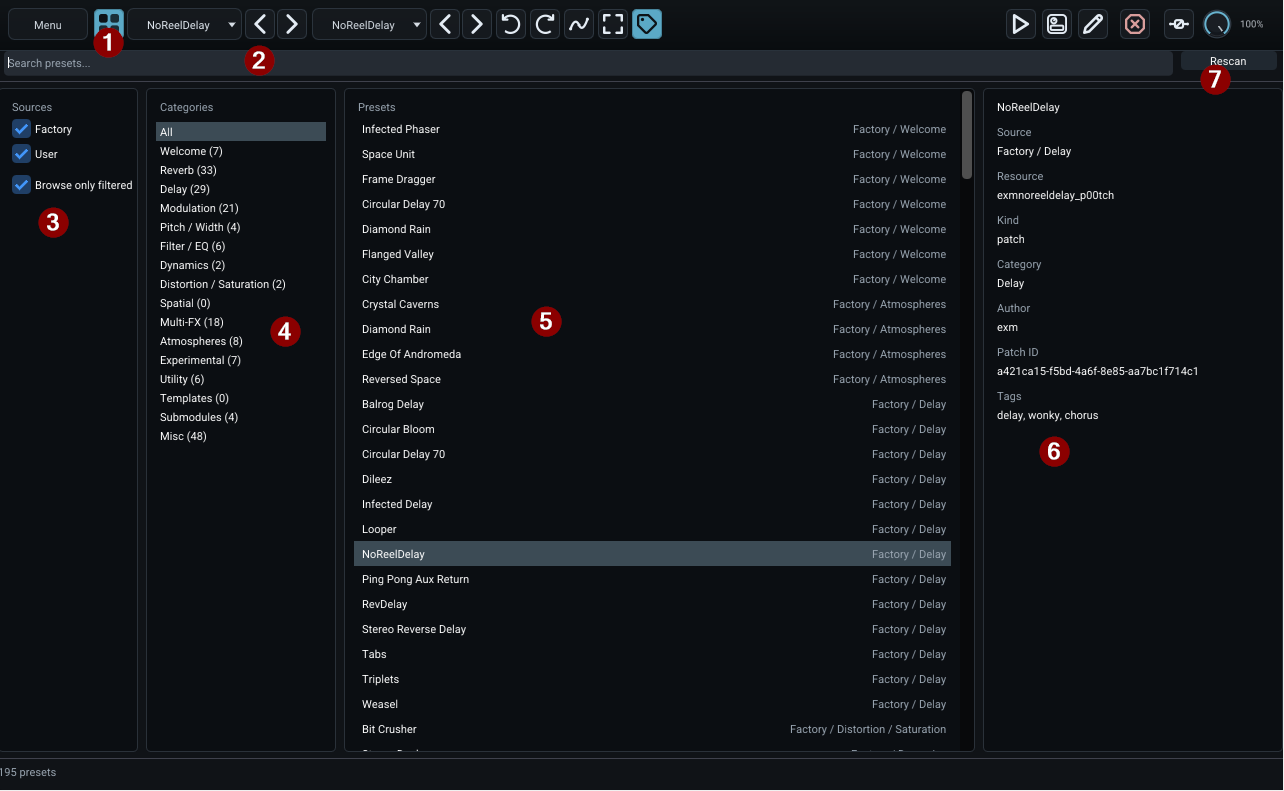
- Browser toggle — the four-square button in the common toolbar opens or closes the Preset Browser. Because it lives in the shared toolbar, you can enter the browser from Operate, Layout or Edit Graph without changing the loaded patch first.
- Search — filters the catalog as you type. It is the fastest route when you remember part of a patch name, tag or description.
- Sources — separates built-in Factory content from User content. Browse only filtered also prunes the category/result view so hidden sources do not keep contributing entries.
- Categories — narrows the visible catalog by the patch's primary category. The counts in parentheses make it easy to see how much content is currently available in each group.
- Preset list — the central result column. This is the list traversed when you browse patches with the previous/next patch controls in the toolbar.
- Metadata panel — explains the highlighted item without requiring you to infer everything from its name. It can show source, resource name, kind, category, author, Patch ID, tags and description.
- Rescan — refreshes the catalog after patch or submodule files have been added, removed or changed on disk while Deepfield is already open.
Finding a patch
The browser can filter by source, category and search text. The source filters separate built-in Factory content from User content. Categories make broad browsing practical, while Search is the quickest route when you already know part of a patch name.
The Browse only filtered option makes the category and preset columns reflect the current source selection rather than showing categories from hidden sources.
Preset list and information
Selecting a preset shows its metadata in the information panel, including source, category, author, tags, Patch ID and description when provided by the patch.
Use the metadata panel to answer a different question from the preset name: what was this patch built to do? Good factory content should make that clear before you load it.
Loading and preview behaviour
A normal selection loads/previews the selected patch in the browser workflow. Closing or moving away from the preview should restore the actual selected/committed item where applicable. Double-clicking a patch can be used as the fast load-and-close gesture.
The exact host-visible wet/dry state is handled at plugin level; loading a preset from the browser resets the plugin mix appropriately for preset auditioning.
Previous and next patch
The toolbar previous/next patch controls traverse patches in the browser order. Saved submodules are not included in normal patch surfing.
Rescan
Use Rescan after adding or changing patch files outside Deepfield while the plugin is open. Factory and user content is scanned into the browser's catalog asynchronously so normal audio processing does not need to wait for file discovery.
Saved submodules
Saved .subp00tch content appears as reusable graph building blocks rather than ordinary complete effects. You can browse and insert these from graph-editing workflows without treating them as the next/previous full patch.
See Submodules.