Interface Tour
Deepfield uses one plugin window for several jobs. The top toolbar remains available while the main surface changes between patch operation, layout editing, graph editing and preset browsing.
The toolbar is easiest to understand in three groups: document/editing commands on the left, patch and Variant navigation in the middle, and view/safety/output controls on the right. The red numbers in the screenshot correspond to the list below.
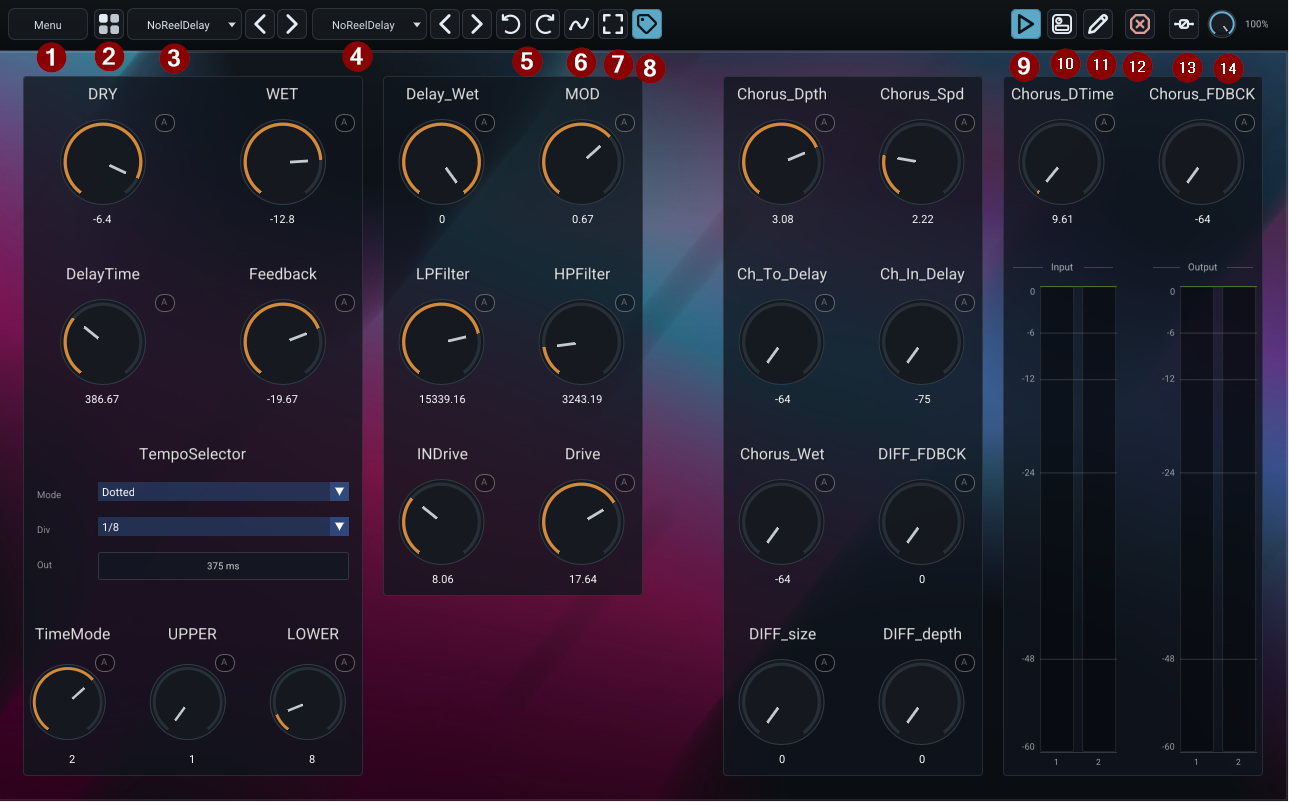
- Menu — opens the complete command menu, including file operations, settings, safety actions and diagnostic tools.
- Preset Browser — opens the patch/submodule library.
- Patch title and navigation — the patch title is centered here; click the title to open Patch Information, while the arrows beside it move to the previous or next patch in browser order.
- Variant navigation — the dropdown chooses Base/Default or a saved Variant; the adjacent arrows step through the same Variant list.
- Undo / Redo — reverts the most recent undoable edit, or reapplies the most recently undone edit.
- Automation Manager — opens the central host-automation and MIDI assignment editor. Its assignments are DAW-instance state, not
.p00tchcontent. - Fit Editor — resizes the plugin editor around the current authored front-panel canvas.
- Show Badges — shows or hides module/front-panel badges such as the automation
Abadge. - Operate — shows the finished front panel as an effect the user can play.
- Save — writes changes back to the current patch.
- Edit — switches the interface from Operate into layout or graph editing modes.
- Panic / Disable DSP — provides the emergency processing control for runaway feedback or another graph that must be silenced immediately.
- Global Bypass — bypasses Deepfield at the plugin level, independently of the patch's own modules.
- Global Mix — controls the plugin-level dry/wet blend. The value is shown beside the knob. Mix is a DAW/host parameter and is not written into
.p00tch.
Patch navigation
The current patch name appears in the top bar. Previous/next controls allow you to move through the preset list without reopening the browser. Patch navigation should move between patches, not saved submodules.
Clicking the patch title opens Patch Information, which edits metadata stored with the patch. This information is what makes the browser useful later: title and category help organize the patch, while tags and the longer description make it searchable and explain the design intent.
Saved in:
.p00tch. Patch title, author, category, tags, description and identifiers are portable patch metadata.
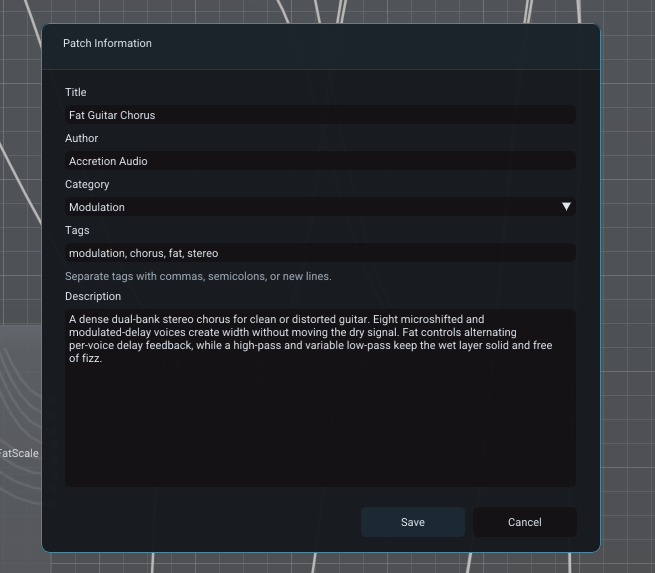
A good description should tell the reader what is distinctive about the effect and any important operating assumptions. In the example, the description explains the chorus topology and what the front-panel controls are intended to change rather than merely repeating the title.
Variant navigation
The Variant selector sits next to the patch controls. A patch always has its Default state and may contain additional saved Variants.
The adjacent previous/next controls move through Default and the saved Variants. Changing Variant recalls parameter state inside the current patch; it does not load another patch file.
Variant definitions and their optional startup choice are stored in .p00tch; the currently active Variant is also remembered in DAW/session state so a project can reopen exactly where it was left.
See Patches, Base and Variants.
Main views
Operate
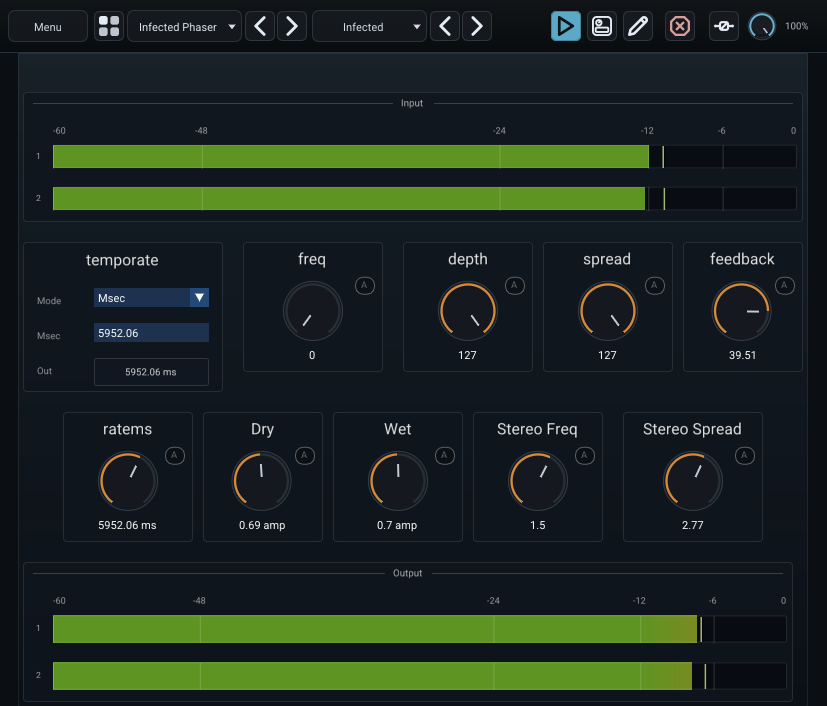
Operate view is the normal performance view. It displays the patch's front-panel pages and controls without the layout handles used while editing.
Use Operate when you want Deepfield to behave like a finished effect rather than a patching environment.
Layout
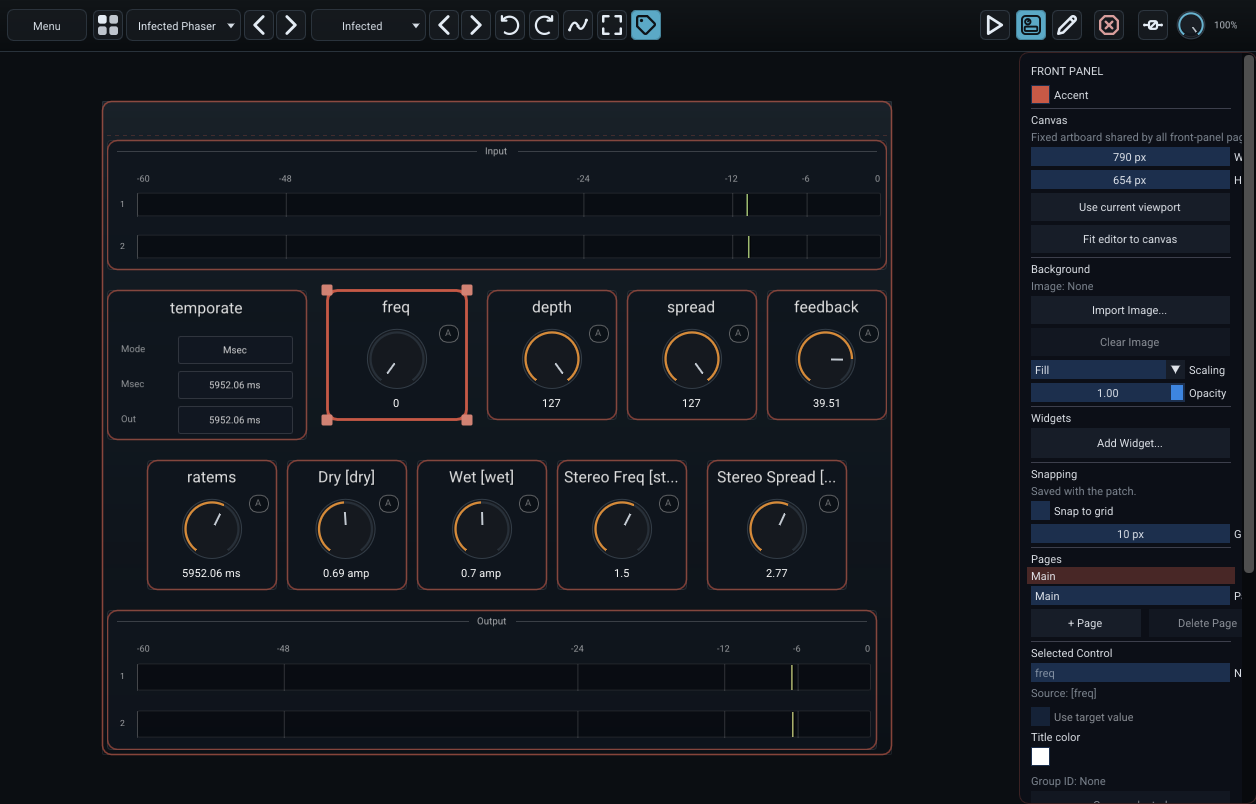
Layout view uses the same front-panel surface as Operate, but adds the visual boundaries and editing affordances needed to move, resize and organize controls. This makes the transition between designing a panel and using it predictable: the controls do not jump to a different coordinate system when you change mode.
Edit Graph
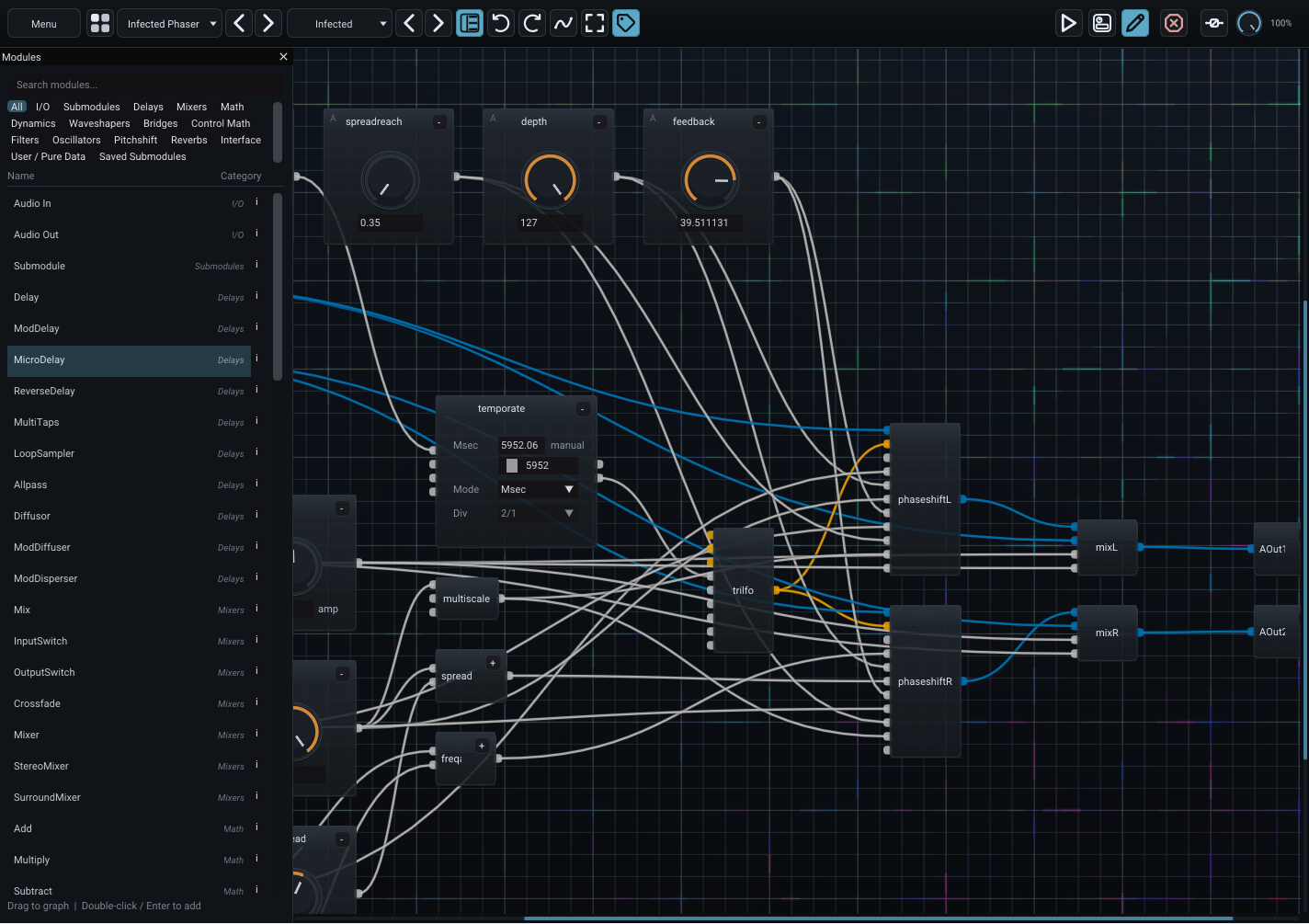
Edit Graph shows the modules and cables that define the patch. The Module Browser and inspector are used here to add, select and configure processors.
Preset Browser
Preset Browser replaces the working surface with the library browser while retaining the common toolbar. Load a patch and then return to the previous working view.
Saved in: the current editor view and per-view window sizes are remembered in DAW/session UI state. Operate/Layout/Edit Graph sizes are also copied into the portable patch presentation data when a
.p00tchis explicitly saved; Preset Browser size remains instance UI state.
Global output controls
Deepfield has plugin-level controls that remain separate from individual patch modules:
- Bypass bypasses the effect at the plugin level.
- Mix blends the processed signal with the plugin input at the plugin level.
- Panic Mute Output immediately mutes the plugin output.
- Disable DSP shuts down graph processing until it is re-enabled.
- Kill DSP on Transport Stop can automatically kill DSP processing when the host transport stops and re-arm it when processing resumes.
These controls are useful because they remain available even if the patch itself has no corresponding front-panel control.
Their persistence is intentionally separate from the patch: Bypass, Mix and Kill DSP are fixed host parameters saved by the DAW/host state; Kill DSP on Transport Stop is DAW-instance state; Panic Mute Output is runtime-only; none of these are portable .p00tch content.
Menu
The main menu provides patch file operations, Undo/Redo, Automation Manager, front-panel and graph actions, safety controls, Settings, About and diagnostic export.
For graph work, the most frequently used commands are also available from context menus and keyboard shortcuts, so the menu is best thought of as the complete command list rather than the only way to work.