Graph Editor
The Graph Editor is where the actual signal-processing structure of a Deepfield patch is built.
The annotated screenshot shows the four areas you use most while editing:
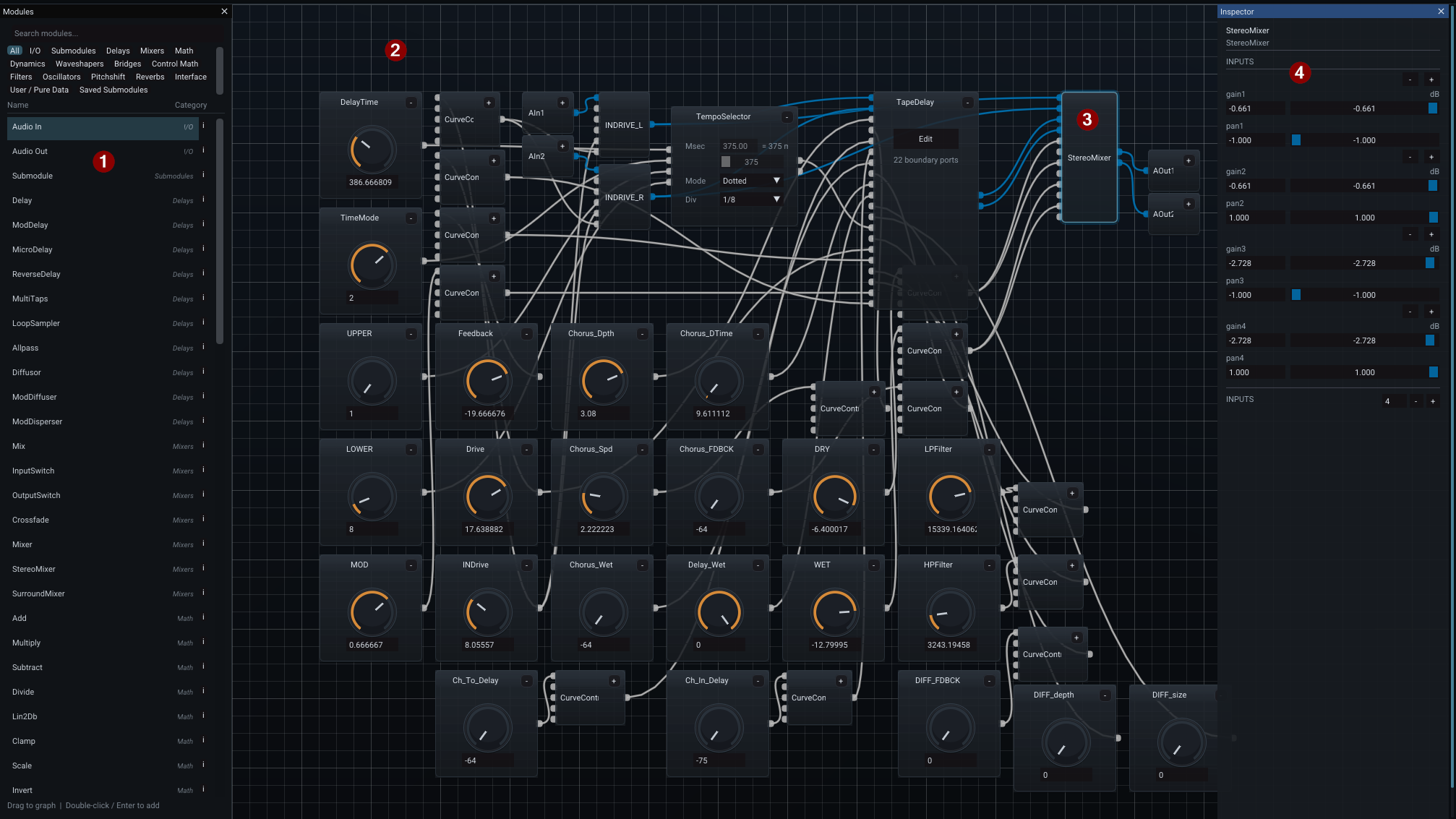
- Module Browser — search or browse processors by category, then drag a module into the graph or add it with the browser's keyboard/double-click workflow.
- Graph canvas — the working area containing modules and their connections. In this patch, user-facing controls sit toward the left and processing/routing converges toward the output on the right.
- Selected module — the highlighted
StereoMixerdemonstrates that graph selection and Inspector selection are the same editing context. - Inspector — shows the selected module's parameters and dynamic fields. Here the StereoMixer exposes per-input gain/pan controls and the current number of inputs.
The cable density in a large patch can look intimidating, but you rarely need to understand every connection at once. Select one destination and trace its incoming connections, or start at an Audio In/Out boundary and follow one path through the graph. Cable appearance and activity visualization can be changed in Settings; signal meaning comes from the pin domain rather than from memorizing one fixed colour.
[!IMPORTANT] Storage: graph structure, module names, node positions, connections, repeating-field configuration and portable module parameter values are
.p00tchcontent. The DAW session also keeps a full live graph snapshot. UI conveniences such as whether the Module Browser dock is currently open belong to DAW/session UI state instead.
Modules
Each box in the graph is a module: a small processor or control function with a specific job. Examples include Delay, Filter, LFO, Mixer, MacroKnob and PitchShift.
The module's type describes what it does. Its instance name identifies that particular copy in the patch. Rename instances meaningfully when a graph grows; feedback_filter is easier to reason about than the fourth module named Filter.
Adding modules
Use the Module Browser or the graph's Add Module context menu. The browser groups modules by category, supports search, and shows a short description for the highlighted item.
The Module Browser is a dock: opening it shifts the graph working area rather than permanently covering modules underneath it.
Saved in: DAW/session UI state. Whether the dock is currently visible is not portable
.p00tchcontent.
Selecting and moving
Click a module to select it. Drag a marquee over empty space to select several modules. With several modules selected, dragging one moves the group.
The graph supports Undo/Redo for structural operations such as adding, deleting, moving and connecting modules.
The Inspector
The Inspector shows the detailed state of the selected module: parameters, pin groups, dynamic fields and module-specific options. Once open, it follows selection, so you can inspect several modules without reopening it each time.
Double-clicking or otherwise focusing a pin can locate the corresponding field in the Inspector; hovering related Inspector fields can highlight their graph pin. This is especially useful on processors with many repeating fields.
Most Inspector edits are authored graph state and therefore become .p00tch content when saved. A small number of deliberately host-instance-only properties — notably host automation slot assignments and direct MIDI bindings — are excluded from portable graph serialization and instead belong to the DAW/plugin state. The Automation Manager is the clearest place to edit those instance overlays.
Pin types
Deepfield's graph has four pin domains:
Audio
Full-rate sample streams. Use Audio for the actual signal path and for any processing that must happen for every audio sample.
Modulation
A fast control-signal domain intended for smooth modulation without the cost of running every control utility at full audio rate. Audio and modulation processing are compiled separately where possible.
Parameter
Control-rate values used for parameter relationships, knobs, mapping, logic and host automation. Parameter connections are also important to Variant behaviour: a parameter driven from another module is derived from its source rather than independently owned by the current Variant.
MIDI
MIDI event/data connections for MIDI-capable graph modules.
Connecting modules
Drag from an output pin to a compatible input pin. A valid destination highlights while you drag.
An output can fan out to several inputs. A given input represents a single source connection. If you need to combine several signals, use a mixer/math module rather than trying to attach several sources directly to one input.
Double-clicking a cable removes it in the standard graph workflow.
Repeating fields
Some modules have a variable number of similar inputs, outputs or voices. Examples include mixers, multi-output mapping modules and multi-voice processors.
These are dynamic/repeating fields rather than fixed pins. Add or remove entries using the module's Inspector/editor controls. Deepfield preserves their ordering and relationships when saving the patch.
Saved in:
.p00tch(and mirrored in the DAW live-state snapshot).
Direct Value Mapping
Deepfield's macro knobs and control modules can automatically inherit and display the real-world value, unit, and range of the parameter they are modulating (for example, displaying milliseconds for a delay time or Hz for a filter instead of a generic 0-100% value).
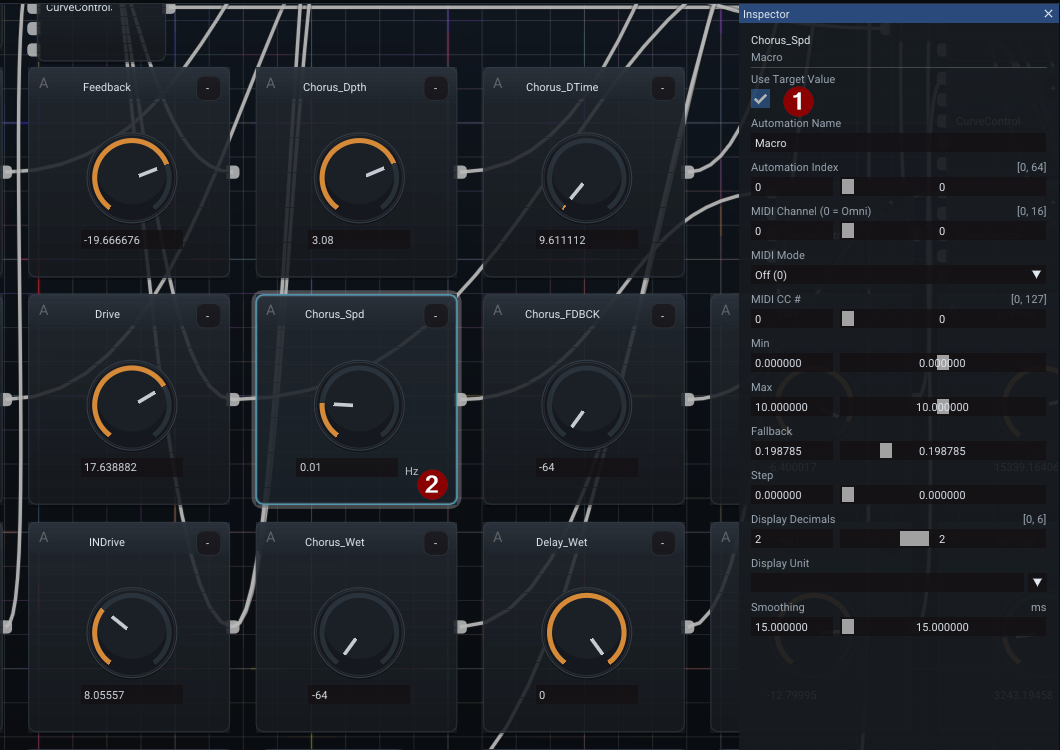
When a control module is connected to a destination, you can enable Direct Value mode in its Inspector.
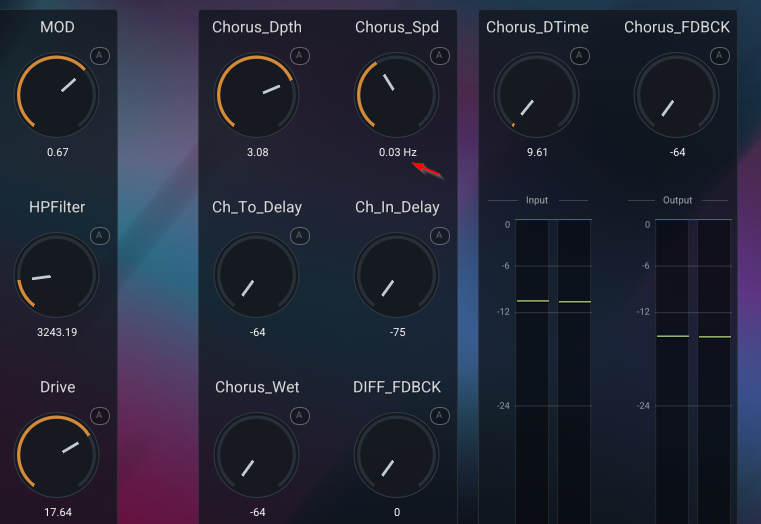
This is especially powerful when your control signals pass through curve or math modules before reaching their destination. The Direct Value system traces the signal path to automatically calculate and display the true, non-linear result at the destination, rather than just showing the raw position of the source knob.
When Direct Value Mapping is Unavailable
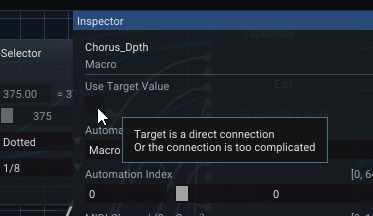
In some complex patching scenarios, Deepfield cannot confidently resolve a Direct Value. This typically happens if the control signal passes through incompatible modules where the math cannot be statically predicted, or if the routing creates an ambiguous destination range. When the engine cannot trace a clear 1:1 mathematical relationship to a destination unit, the feature will be disabled in the Inspector and the control will gracefully fall back to its standard percentage display.
Graph organization
Use meaningful spatial structure. A common convention is left-to-right audio flow, with control sources above or below the modules they influence. Deepfield does not require this layout, but humans benefit from it.
Available organization commands include Auto Arrange and horizontal/vertical alignment of a multi-selection. Node positions are presentation data inside the graph document: they change the .p00tch even though they do not change the sound.
Feedback
Deepfield supports feedback-style audio structures. The compiler identifies cycles and introduces the required delayed-edge behaviour so a loop can execute causally rather than recursing infinitely inside one sample.
Feedback is one of the most powerful parts of Deepfield and one of the easiest ways to create very high levels. Start feedback gains low, add filtering deliberately, and keep the Safety Output Clamp available while experimenting.
Show in Front Panel
A graph can be technically complete and still be awkward to use. Once the effect works, select the Interface modules that matter during normal operation and expose them to an appropriate front-panel page.
See Layout Designer.